
Palworld burst onto the scene back in early 2024, and for anyone who wasn’t glued to the development updates, it felt like it came out of nowhere. This quirky mashup of creature collection, survival, and base building—often described as a “gumbo” of other games—shattered launch records and pulled in millions of players almost overnight. But that kind of success comes with a catch: the multiplayer servers were absolutely slammed. Pocketpair even had to slap a warning on the start-up screen letting folks know that crashes, disconnects, and other headaches were likely. Fast forward to 2026, and the game is still going strong, but the server strain? Well, it’s not quite the wild west anymore, yet many players still find that setting up a dedicated server is the smoothest way to enjoy Palworld with friends. And the good news is, it’s surprisingly easy.
Before diving into the how-to, it helps to understand what you’re choosing between. Palworld offers a few different ways to play, and each one has its own trade-offs. For a quick comparison, here’s a handy table:
| Gameplay Option | Player Limit | Pros | Cons |
|---|---|---|---|
| Single-player | 1 | No server hassles, full control | No friends, lonely Pals |
| Co-op (hosted) | Up to 4 | Easy to start, no extra cost | Host must be online, limited slots |
| Dedicated Server | Up to 32 | Always online, large groups, stable | Requires setup, hardware, and a bit of tech know-how |
For a large chunk of the player base, that last option is the golden ticket. It means no more waiting for the host to log in, no more random disconnects, and a persistent world where your Pals keep working even when you’re offline. So, how do you actually set one up? The process is refreshingly simple—especially compared to other games that shall remain nameless. You don’t even need to create a world first, technically. Just follow these steps, and you’ll be good to go.
Step 1: Check your hardware. Pocketpair recommends at least 8GB of RAM (though 16GB or more is ideal), a decent 4-core CPU, and a stable internet connection. If you’re running the server on a spare PC or a dedicated machine, make sure it’s wired, not Wi-Fi, for the best experience.
Step 2: Download the dedicated server tool. The easiest method—and the one Pocketpair officially recommends—is through Steam. In your Steam library, switch the filter to “Tools” and search for “Palworld Dedicated Server.” Install it just like any other game. Alternatively, you can use SteamCMD if you’re comfortable with command-line tools, or rent a server from a trusted hosting service if you’d rather not deal with the hardware. But for most folks, the Steam tool is the way to go.
Step 3: Run the server. Once installed, launch the dedicated server executable. A console window will pop up, and the server will start generating a world. You’ll see a bunch of text scroll by—don’t panic. This is normal. After a minute or two, you’ll get a message that the server is running.
Step 4: Configure your settings. In the server folder, you’ll find a file called PalWorldSettings.ini. Open it with a text editor (Notepad works fine). Here you can set the server name, a password for players, an admin password (so you can kick or ban troublemakers), and tweak gameplay settings like difficulty, drop rates, and PvP. Save the file, then restart the server for changes to take effect.
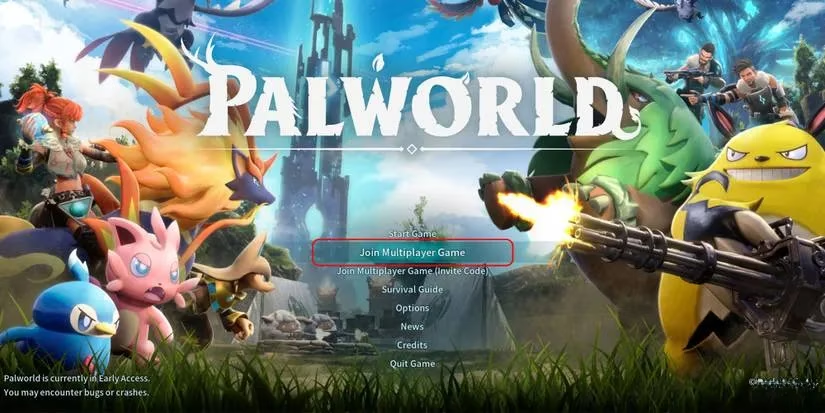
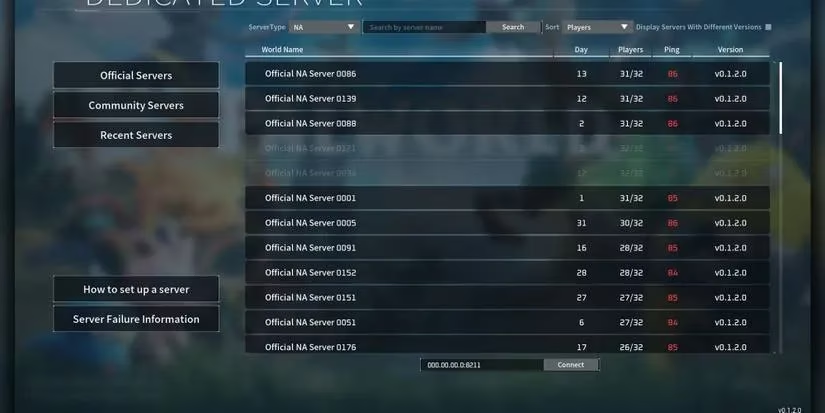
Step 5: Connect to your server. Now you need to find your server’s IP address. If you’re on the same network, you can use your local IP (something like 192.168.1.xxx). If friends are joining from outside, you’ll need your public IP, which you can find by searching “what is my IP” online. In Palworld, select “Join Multiplayer Game” from the main menu, then enter the IP address and port (the default port is 8211). Click connect, and you’re in!
A few extra tips for 2026:
-
🛡️ Port forwarding: If friends can’t connect, you may need to forward port 8211 (UDP) on your router. Every router is different, but a quick search for your model will walk you through it.
-
🔄 Keep it updated: The dedicated server tool updates automatically through Steam, but if you’re using SteamCMD, you’ll need to manually update it. Regular updates ensure compatibility with the latest game patches.
-
💾 Backups: It’s always smart to back up your server’s save files (located in the
Pal/Savedfolder) before major updates or changes. Better safe than sorry. -
🎮 Admin commands: Once you’re in-game, you can use admin commands (like
/broadcastor/kick) by typing them in the chat if you’ve set an admin password. This helps keep your server friendly and chaos-free.
Honestly, the whole process takes maybe 15 minutes, and then you’ve got a persistent world ready for you and up to 31 friends. No more server queues, no more random crashes from overloaded official servers. Just you, your Pals, and a stable connection. In 2026, with Palworld still receiving updates and new content, there’s never been a better time to roll your own server. So grab that spare PC, follow the steps, and get ready to lose a few hundred hours. Happy Pal hunting! 🐾
Comments